GST A4 / A5
tax invoice
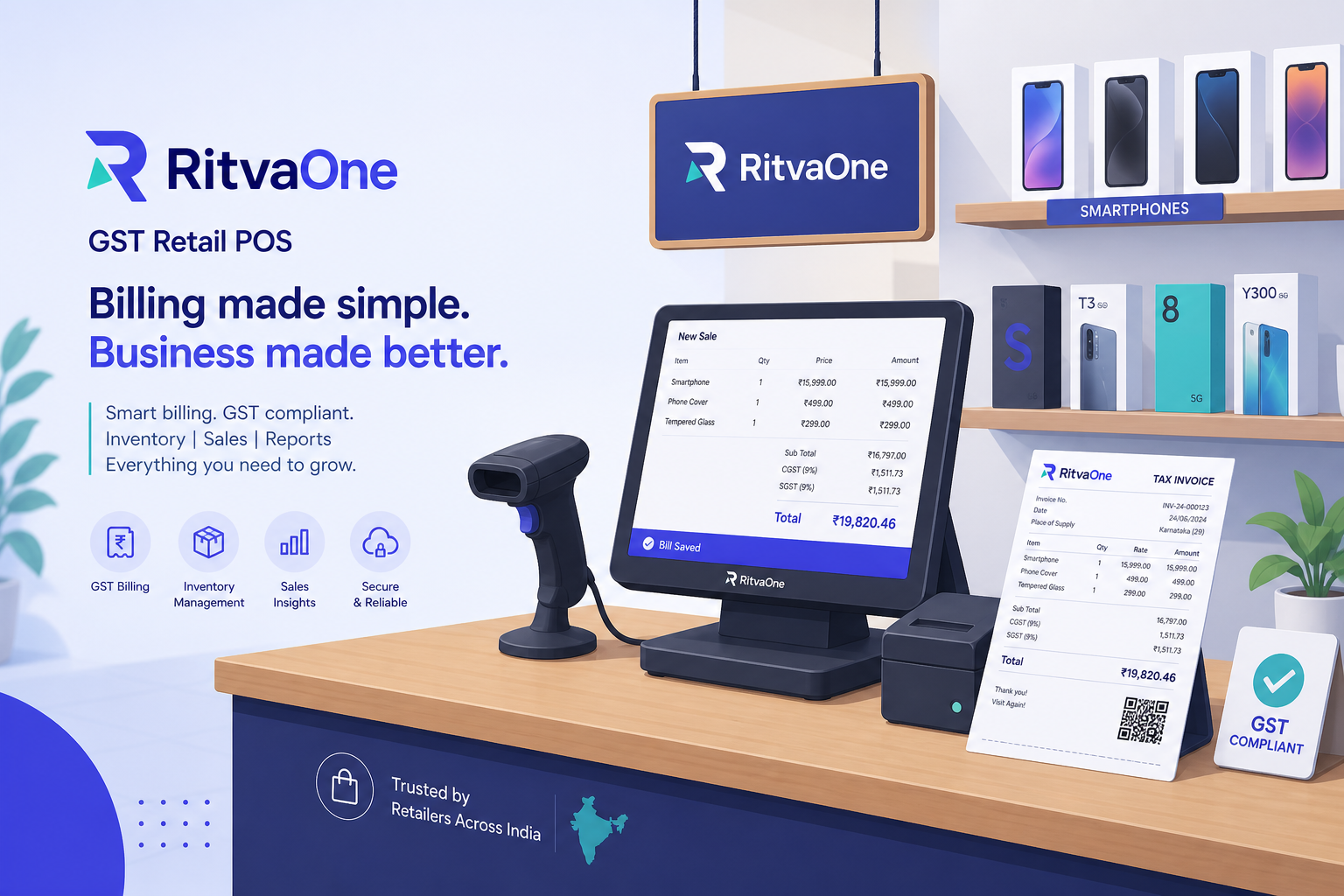
GST POS for Indian retail
Bill at the counter.
Run the shop in Admin.
One RitvaOne.
GST invoices, stock, customers, and reports for mobile shops, pharmacies, grocery, fashion, and hotels & restaurants. Cashiers use POS. Owners use Shop Admin. You run the platform in Super Admin.
- IMEI
- Batch / expiry
- Table + KOT
- Udhaar
- A4 / A5 GST print
IMEI on mobile
Batch on pharmacy
Table / room
KOT to kitchen
Offline POS on
Primary Owner PC
Four ways to run RitvaOne.
Same shop, same catalog. Pick the app for the job — illustrated here, not photographed from the live product.
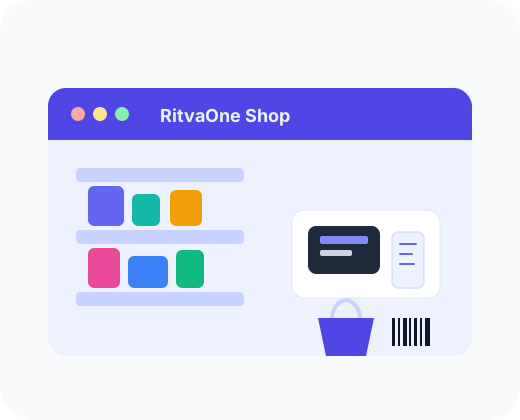
Shop Admin
Products, purchases, stock, customers, Udhaar, returns, expenses, reports, GST, staff, and print settings.
Open Admin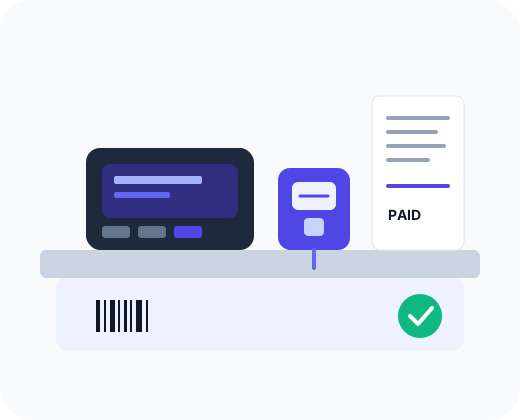
Cashier POS
Scan, bill, cash / UPI / card / EMI / Udhaar, pharmacy FEFO, mobile IMEI, cafe walk-in + table.
Open POS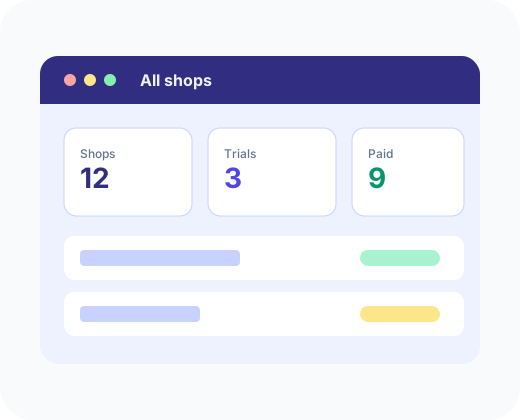
Super Admin
All shops, trials, prepaid prices, locations, POS seats, and Pay & unlock. Log in with tenant blank.
Open Super Admin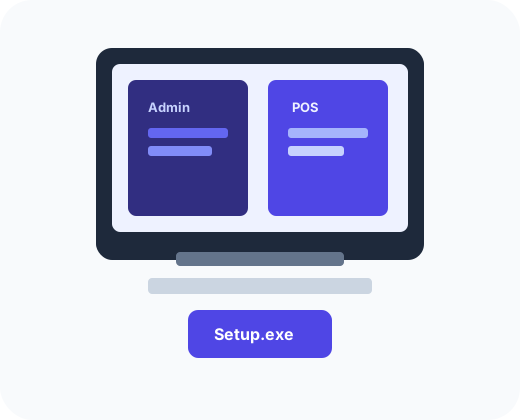
Windows desktop
Optional counter PC with Admin + POS in one installer. Download the latest Windows build only.
Download WindowsWhat you actually get.
Every item below is in Shop Admin or POS today. No marketplace filler.
GST billing
Inclusive tax, CGST/SGST or IGST, A4 / A5 tax invoice, thermal slip, copies per document.
Barcode + search
Scan at POS or type a name. Grocery-speed checkout without a customer form unless you require it.
IMEI / serial
Mobile shops track handsets. IMEI on the bill. Unit stock, not a loose quantity.
Batch + expiry
Pharmacy FEFO, MRP, damaged / quarantine lots, prescription note on Rx lines.
Table + KOT
Hotels & restaurants: table or room, kitchen order, beverage slip, walk-in checkout.
Udhaar + EMI
Credit sales and collections. EMI partner on mobile bills. Cash, UPI, and card tenders.
Purchases + GRN
Suppliers, purchase bills, batch lines on stock-in. Inventory moves when you post.
Returns + expenses
Sale returns with credit note. Shop expenses (rent, power) next to sales reports.
Excel import
Bring a catalog in. Review queue for unknown scans before they hit the shelf.
WhatsApp invoice
Share a GST PDF from the bill. No fake SMS or Tally connector on this page.
Locations + staff
Starter is 1 location / 2 POS logins. Growth and Business raise seats. Super Admin sets the cap.
Pay & unlock
Razorpay after trial, or UPI / bank copy from Super Admin Pricing. Live INR on this site.
Counter billing that matches the shop type
- Barcode or name search — barcode can be switched off in Settings
- Customer required, optional, or walk-in compact checkout
- Pharmacy: pick lot by expiry (FEFO), Rx noted on the bill
- Mobile: IMEI / serial before pay; EMI partner if you use it
- Hospitality: table number, KOT, kitchen / beverage slips
Stock that follows the bill
- Live qty after every sale and return
- Purchases post into lots or IMEI units
- Excel product import + review queue
- Branch stock when the plan allows extra locations
- Adjustments with a reason, not a silent edit
Customers when you need them
- Walk-in, optional, or required — per shop Settings
- GSTIN and state for IGST vs CGST/SGST
- Udhaar ledger and collections
- WhatsApp GST PDF from the paid bill
- No fake SMS gateway listed here
Reports the owner actually opens
- Today’s sales and low stock on the dashboard
- GST register for the accountant
- Top products, stock, and tax year views
- Sale history, invoice reprint, returns
- Same numbers in Admin and after POS sync
Print is a setting, not a guess
- Customer bill, tax invoice, payment, return — each document
- A4 / A5 (and thermal where the shop type allows)
- Copies and enabled flag per document
- Open preview + test print from Settings
- Hospitality kitchen / bar slips when KOT is on
Back office in the same login
- Suppliers and purchases, not a second app
- Returns and credit notes on the original bill
- Expenses next to sales
- Staff & POS logins; Super Admin raises the seat cap
- Offline POS only on the Primary Owner PC after one online login
Built for six shop types.
You pick the type at signup. Defaults (customer, batch, KOT, print) follow the type. You can still change Settings.
Mobile
IMEI unit stock, EMI, GST A4/A5, customer on the bill when you require it.
Pharmacy
Separate Pharmacy Admin: batch, expiry, FEFO, MRP, Rx gate, purchase batch lines. Then open POS for the counter.
Open PharmacyGrocery
Fast barcode, walk-in checkout, GST when you need a named invoice.
Fashion
Size, colour, SKU billing. Same GST and stock engine as grocery.
Hotels & restaurants
Table / room, walk-in, KOT, kitchen slips. GST form only if you add a customer.
Laboratory
Separate Laboratory Admin: departments, sample types, and lab settings. POS is not used for labs.
Open LaboratoryConnected to tools we actually ship.
If it is not in the product yet, it is not on this row.
WhatsApp PDF
Excel import
Razorpay / UPI
GST print
One price list. Live from Super Admin.
Shops pay a prepaid license by type and duration after the trial. Starter / Professional / Business is how many locations and POS logins you get — not a second dollar price grid.
Prepaid license by shop type
INR below updates when Super Admin publishes Pricing (about 45 seconds).
Free trial on signup (default 14 days).
14-day free trial
What each plan includes
Monthly / yearly toggle is for the seat plan quote. License duration cards above are prepaid INR.
How shops use it.
Composite examples of the shop types — not paid celebrity quotes.
Mobile
IMEI on the bill, EMI when the customer asks, GST A4 from the same counter as POS.
Pharmacy
Batch and expiry on stock-in, FEFO at billing, Rx noted, A4 customer bill like mobile.
Hotels & restaurant
Walk-in bill, table number, KOT to kitchen. GST form only if you add a customer.
Questions.
What is included?
Shop Admin, cashier POS, inventory, customers, GST billing, purchases, returns, expenses, reports, print settings, and Super Admin for the operator. Windows desktop is optional.
Is there a free trial?
Yes. Sign up from Start trial. Trial days follow shop type from Super Admin Pricing, then Pay & unlock (Razorpay) or Mark PAID.
Can I use more than one counter?
Yes, up to the POS login and location limits on Starter, Professional, or Business. Super Admin sets seats.
Do you use real screenshots on this page?
No. Charts and POS frames are illustrations so the live product can change without this page going stale.
How do I pay?
Pay inside Admin after signup (Razorpay). UPI and bank details appear if Super Admin published them.